Labels

#TrickleChallenge (6) 1:1 (10) CUE (1) DonorsChoose (1) EdTech (20) GAFE (8) Minecraft (2) photography (5) reading (1) teaching (63) Techie Tuesday (4) writing (2)
Showing posts with label 1:1. Show all posts

Tuesday, November 29, 2016

11/29 Techie Tuesday

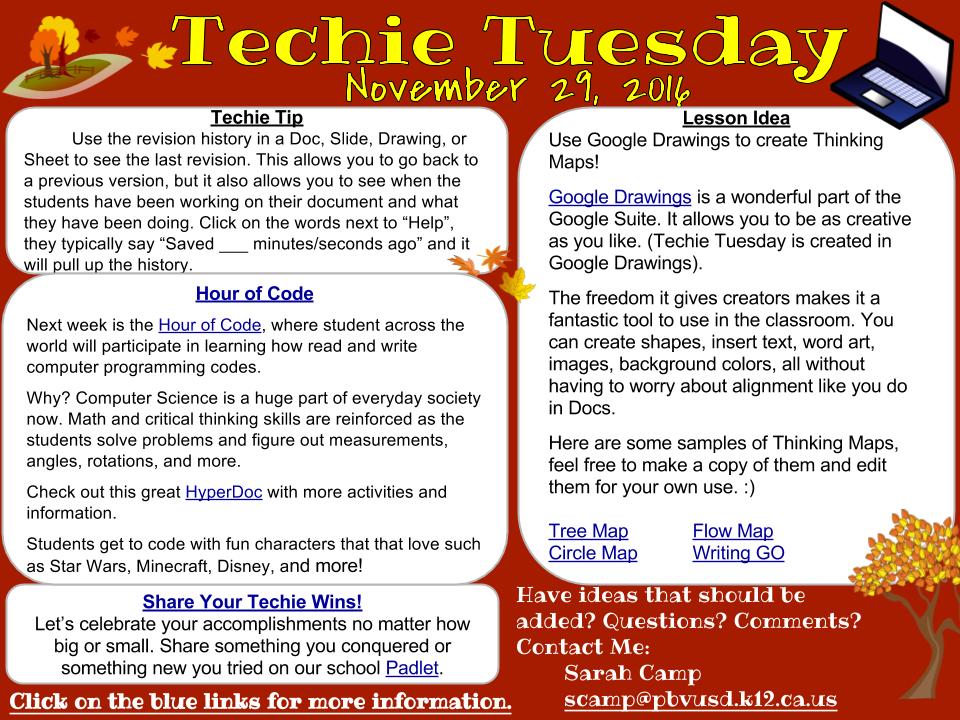
The newest edition of Techie Tuesday is out!

This week we take a look at using Google Drawings to create graphic organizers. People are always amazed when I share digitized graphic organizers. Even more amazement comes when I tell them my students made my templates. I made a few of these graphic organizers that required more time and details, such as the writing graphic organizers, but the others, including more I don’t have listed, were student made. I’m all about crowdsourcing. Why spend precious lesson planning time creating graphic organizers on the computer when you can ask your students to create their own? I always put a nice spin on it. I tell them that the one who has the nicest and most effective graphic organizer will get it saved on My Drive and then shared out as a template with the rest of the class.  Once you put that spin, they take their time and produce some amazing work trying their hardest to be selected.

The Techie Tip is about using the revision history in the Google Suite. This has been a lifesaver for me personally because my cat likes to walk across my keyboard at home when I step away. Instead of clicking undo a crazy amount of times I simply access the revision history and go back to the version of my document BEFORE I stepped away from the computer.

Revision history also comes in handy with my students. With groups you get to see who has contributed, what they have done, and how long they spent on it. Individually you get to see when the student first began working on it and when they last accessed it. This has come in handy because I’ve had students brag about getting their work done late at night, so I look up their document, show it to the class and reveal the revision history which shows they hadn’t even started working on it until late at night. We then have a long talk as a class about being responsible and getting work done in a timely fashion. During class, I can also see who’s doing what on their documents and when. So when I get reports that someone is playing around, I can look up their revision history and see what they have been doing.

Finally, we tie it all up with talking about Hour of Code which begins next week! This is huge and is such a great program to expose kids to the amazing world of coding. Hour of Code puts it all in a fun perspective and shows real-world application of math. I love that they include fun and recognizable characters that the students love. If you haven’t tried it with your class, you totally should! It’s a lot of fun, even I do it with my class. Thanks to +Rae Fearing  for sharing your Hyperdoc on Twitter!
Techie Tuesday- November 29.jpg


post signature

Monday, June 29, 2015

Monday Made It - June 29th


I am linking up with 4th Grade Frolics and joining in with her Monday Made It! 
My goal is to keep up with this every week, keep your fingers crossed for me.
I only have one "Made It" for today and that is a Novel Unit that my 4th grade team and I created together. Our school is fortunate enough to be 1:1 with laptops now, so we wanted to cut down on the paper and copies. We created this in Google Docs. The goal is to have everything in one document so that it is easy to check in and you do not have a lot of files floating around. This could be printed out if you would like to do that.

Even though the document says for a 4th/5th grade class, this would be easy to adapt for any grade level.

The file is a View Only, but you can make a copy to save as your own and edit as you please.
The BFG Novel Unit
I would LOVE any constructive feedback from this as I am working on novels for other books. Please be sure to follow my blog to continue getting updated on EdTech and using technology in your classroom.

Thank you for coming by!

post signature

Tuesday, June 23, 2015

MinecraftEDU in the Classroom

Did you know that you can use Minecraft for educational purposes? I found this out last year at the CUE 2014 conference. I was so excited to use it.

This past year at the CUE 2015 conference I was fortunate enough to attend another session by John Miller (http://minecraft.edtecworks.com/). He shared a wonderful Japanese poetry project he did using Minecraft. The final product was the students created a Japanese tea garden set to music and lead you on this journey through their poem. There were different sound effects and actions that would happen when you would crossover the action blocks, the poem would even be read to you. I was blown away and that was when I got even more excited for using Minecraft with my kids.

We really used Minecraft this year by incorporating it with our Guardians of Time project. The students had to work with their teams and create a time period appropriate headquarters for their superheroes to live in. After that was completed, their next task was to reconstruct the first setting of their main event from their mission assignment. 

This proved a bit more challenging and I had to guide them a bit more than normal so they knew what I was expecting.  I gave them all Information blocks, which is special to the EDU version, and the students had to strategically place these blocks around their setting and explain what was so important about this piece. 

This was the part they struggled on because they were not sure why certain things were important to, let's say, the Gettysburg address. I spoke with the group about that and finally asked them specific questions like, "Why was it held in that cemetery? Why should we care it was held there? What was the big deal about his speech? How did this speech affect hisory?" After doing this with several groups they started to get the idea.

I was speechless at the outcome. You know, you always worry about the fun activities and that the kids aren't taking much away from it. I really expected the parents to come to Open House and question me on the kids JUST playing Minecraft... but I had a much different repsonse.

The parents were blown away at what their kids were learning with this and the details they were sharing about their specific events. When my principal came in with a board member, one of my students explained, in detail, about where Christopher Columbus set sail from, why it was important, the name of the dock and much more. I was blown out of the water!

I had my kids do screencasts of their projects and you can find them below. It was our first attempt at a screencast, so the volume is a bit low because the kids still felt the need to speak in a soft voice even though they were told to speak normally.

Enjoy!!


post signature

Friday, May 15, 2015

Student Tech Team

For the past several years, before 1:1, my school has had a student tech team. We have learned a lot about managing it throughout the years, although we still have a lot more to learn. 
In my school, I am one of two tech teachers who helps the other teachers out before we have to call out IT. We do our best to take care of little problems, but were having troubles getting to everything so we call in the student Tech Team.

Every year I hold a meeting for those interested in Tech Team and a lot of kids sign up, but only a handful remain steady. We train these kids in phases.

**Note: Our school is now 1:1 with Acer laptops running the Ubermix. The students have their own WiFi network that is separate from the staff network.**

This year we started just going over the basics: how to connect to the internet, how to troubleshoot a connection or a basic computer error.  Once they conquered those we moved on to more difficult tasks such as reimaging a laptop (our student laptops run the Ubermix so reimaging restores original settings), troubleshooting printer errors, and even checking networking errors.  My students blow me away with how quickly they catch on and how they're always eager to learn more.

With the school year ending, now when I receive an email request for help I can quickly go over what I want my students to check and look for and they can troubleshoot it before I have to! This has made the turn around time on tech help requests so much faster!

Here are some of the crazy things my students have done this year with Tech Team:

1. At the beginning of the year, one of my 4th grade teachers was having networking issues and her student laptops would just not hold a connection. Two team members went to her room, troubleshooted all of the connections and then found the issue was with the router placement in the room (they knew this just from hearing me talk about it in class from a conference I went to). My girls then disconnected the router, placed it elsewhere in the room, reconnected all the laptops (including the teacher) and the network was up and running again!

2. I received an email about a teacher having an issue with the sound on the projector. I showed my Tech Team member what cords to look for, what buttons to check, and how to check the sound output and then I sent her to the other teacher. My student came back with notes to report what all she checked and the cords that were or were not connected. IT was contacted to check on it further for the missing cords, but the problem was solved within 10 minutes of my Tech Team member going over there.

Tech Team doesn't only troubleshoot and help with problems, they also teach classes!

Currently, two of my girls are working with a 2nd grade class and teaching them how to use their laptops. They have taken the kids through Google Docs, Slides, and Drawing as well as Edmodo and Moby Max. Those little 2nd graders are flying through their technology lessons!

Moral of this story: Do not be afraid to turn over power to your students! I have been amazed at the growth of my Tech Team members. They are starting to learn things on their own because they want to understand more of what is going on with the technology.
Does your school have any type of technology team set up?
post signature

Sunday, May 10, 2015

Guardians of Time Project Part 2

I started this project before Spring Break, so over Spring Break my students had the 'homework' to write their superhero origin stories and draw a picture of their superhero. I was shocked when 80% of them came back ready to go!

I wanted this project to be published somewhere and an easy place for my students to work collaboratively with each other. I decided to create a Google Site for the students to publish their work on.  My students were very excited about being published on a website.

Google Sites and Google Docs work VERY well together.

I started with a basic site. My students helped me brainstorm ideas for our agency name that all their heroes would work under and the name of the project itself. I told them that this was my first time doing this project and wanted it to be a collaborative effort amongst all of us.

Once we decided on the project name, Guardians of Time, and our agency name, H.E.R.O.E.S., my wonderfully talented brother-in-law created our graphic for our agency. I posted this to the site to make it feel 'professional' for the students. They got the biggest kick out of it. 


After creating a page for the superhero origin stories, I knew I would have difficulty keeping up with the site itself with adding links and documents. In their superhero teams, each team selected a leader and this leader was in charge of keeping their web page updated. Crowdsourcing at it's finest. :)

The team leader updated their team mission page, journal page, and their interactive story page (which I'll get to later).  Below are some screen shots to the webpage and a link. I am not sure how much you will be able to see at the link because my district has a closed server through Google. 


Here's the full site picture. 

Here's the menu side bar with the different parts of our site. 

If you have any questions feel free to comment or post on my Facebook page. 

post signature

Sunday, May 3, 2015

Back and Ready To Go!

Hi everyone! I deeply apologize for my long absence. I had several family matters come up including the passing of my brother and then my eight-year-old niece being hospitalized for several months with the flu.
I am back though and ready to keep this going! I hope you all are ready to go for a ride because I have A LOT to catch you up on from this year!
To help keep everyone up to date I have a Facebook page for my blog and TPT store. Please stop by and give it a like:

Shutters & Scribbles Facebook Page

I just updated my TPT store with some new products. Since my class is 1:1 and we are a GAFE district, I created Google Doc novel units. What that means is...no more paper packets! I was so excited when I put these together and it has saved me so much time. In the documents, I created a Table of Contents with links so it will take you directly to certain pages. No more flipping or scrolling looking for the right page.

TPT is having sitewide Teacher Appreciation Sale May 5th through 6th and my store will be included in the sale. Be sure you stop by and check it out!

Shutters & Scribbles TPT Store

Watch for more exciting posts coming up from me. I'll try not to overload the blog, but I have a lot to share!
post signature

Sunday, July 20, 2014

Google Apps for Education

With the roll out of the 1:1 implementation, I was thrilled to find out we would be using Google Apps for Education (GAFE). I had been using Google Docs, personally, for several years now and had even used it for my school work as well.
My students and I worked through GAFE together as we brainstormed ideas on how to use it in the classroom and how to increase collaboration.  The 'Share' button became my students best friend! For those of you unfamiliar with GAFE, the 'Share' button allows you to share that document with another person and they can work on the document at the same time as you. It's great for collaboration!

It was hysterical when I first started quick reading their essays during class. I would pop into one students writing while they were working on it (They were all required to share their work with me). The entire group that person was in would fall silent and stare at that one computer screen as I made a few quick comments on the paper. I would here "Miss Camp's posting on my document" in whispers across the room as I hopped from essay to essay.
Here are a couple of things we did using GAFE:


Amazingly, my Special Angles Artwork project was featured over at Alice Keeler's blog here:
Math: Creating Angles in Google Drawing
post signature

Saturday, July 19, 2014

1:1 Implementation - What I Learned From Piloting 1:1 Midyear

At first I was debating if I should do a series of post or one long post. I decided on the latter because I have so much to blog about with planning for the upcoming school year! So here we go!

This is a post that will show you how I implemented 1:1 laptops in my classroom beginning this past March and talk to you about what I learned. I will then post a series about different activities we used the laptops for and the successes and failures of the activities.

My district chose to go 1:1 using Acer laptops running the Ubermix 2.0 system. This was all new to me. The most I had were small group sets of iPads, Nook Tablets, and laptops. I had started a BYOD (Bring Your Own Device) program, so my classroom had been a almost 1:1.

My kids were ecstatic when I told them we had been selected to pilot the 1:1 program for the district. I explained how we would have to work together through this and keep notes of difficulties, successes, and failures. From Day 1 I heavily involved my students in this process.


Our awesome tech guy, Mr. Grumbles, came out and went over some guidelines for using the laptops and how to treat them. Then... the students had time on their own to check out the devices. This was fantastic because it gave them that Christmas morning feel and allowed them to explore and take some of the curiosity out of it so during class they weren't dying to play with it.


It took only one minute and word spread. With the students helping and teaching each other, soon the entire class had all changed the backgrounds on their laptops. They were beginning to customize their settings too. At one point a student asked us a question and we both froze. We were the teachers, shouldn't we know how to answer it? The truth was we were both unfamiliar with this system as well. Finally we told the student to look up their answer because we didn't know.

I posted 'Parking Lots' up around the room where the students could use post-its to post questions, problems, shortcuts, or great programs or websites they found.  We then worked together to come up with new procedures for our class. My students would ask me specific questions like, "What do we do with the laptops during Book Clubs?" I told them this was my first time with 1:1 so we were going to have to figure out together what to do during Book Clubs.

 
We received a charging cart for the laptops and, being the organizational freak I am, numbered all of the cords and numbered all of the laptops. This way the laptop number corresponded with my students' class number. I could hold the students more accountable for their laptop. There were consequences for students not following directions or if their laptop battery died. If a students laptop battery died during use they then had to take out the paper copies of what we were working on and complete their assignment using pencil and paper. This really encouraged students to check their cord when it was plugged into the cart. The students were the ones who helped me come up with the consequences for misbehaving and not taking care of the laptops. I actually had to reign them back in and scale down their punishments. 


When I started this venture I had posted online that I was looking for free, web-based programs that would work well with 1:1. I was overwhelmed with the response I received. Looking at all the recommendations I knew there was no way I was going to be able to go through all the websites. I took the websites back to class and paired my students up. I assigned each pair a website to evaluate, which is a Common Core Standard, and it was up to them to present it to the class. The students had to answer questions I gave them that included what they thought about the website and how they saw us using the websites in class.

My students did a fantastic job and we started using many of the websites in class based on their recommendations! The journey did not end there as the students began to discover other sites and would present them to me as well.

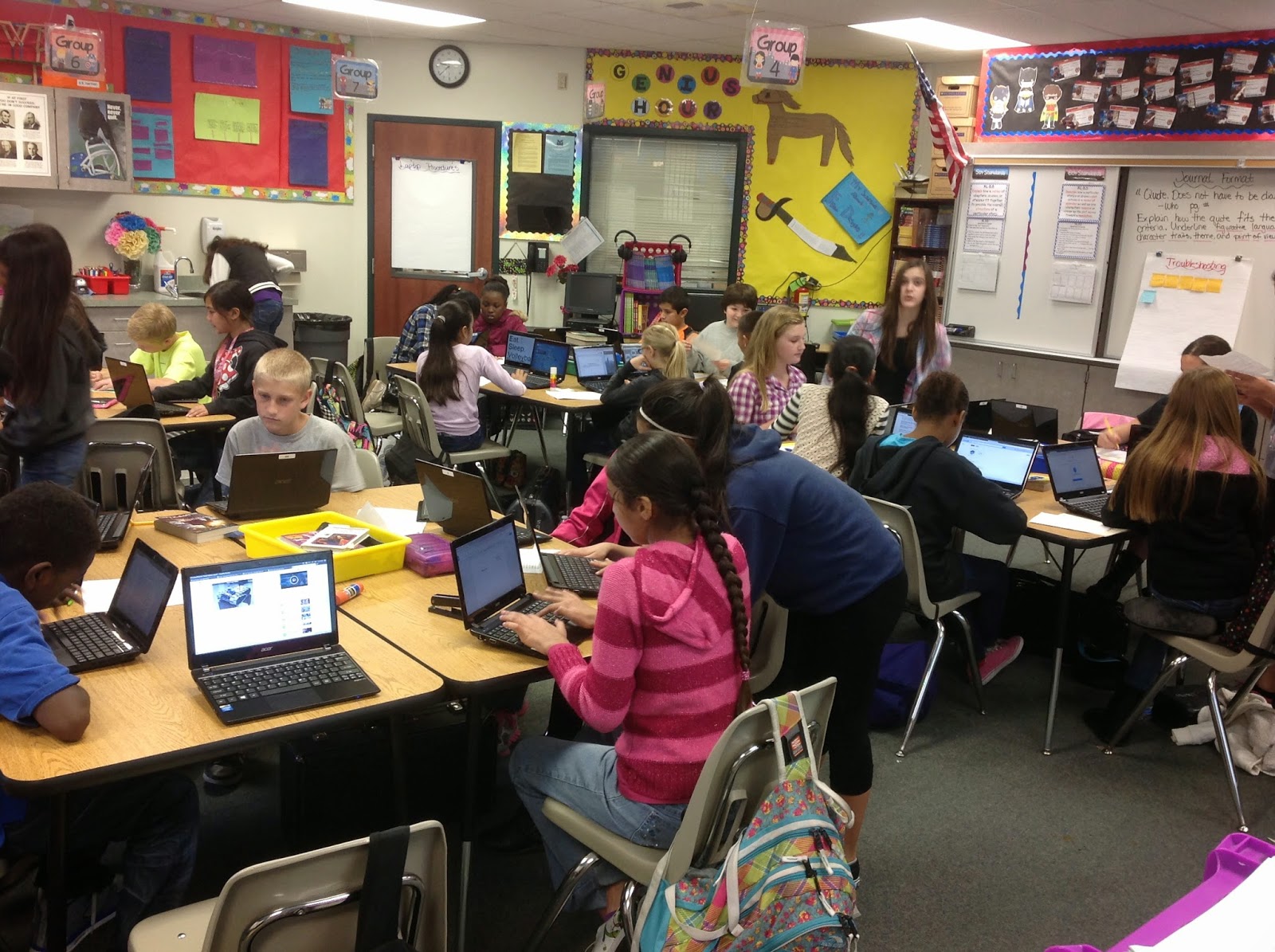
I have always been the super structured teacher, with the students quiet when they worked unless I gave them permission to chat. Over the past couple of years I have changed drastically. Taking on the 1:1 flipped my classroom on it's head! My room was no longer quiet when the students were working, they were collaborating, sitting where ever they were comfortable, and working together! I was amazed at the work I was receiving.  

Here are some pictures of my NEW collaborative classroom: 
Overall here is what I learned from this experience: 

1. Involve your students!
2. Be honest with them if you don't know something.
3. It's okay not to know everything and to learn with your students.
4. Give your students some time on their own to explore the device.
I hope this helps anyone who will be starting next school year with 1:1. Best wishes! :)
post signature

Monday, July 14, 2014

Beginning 1:1 - Starting the New School Year

I am sitting here trying to prepare for the new school year, which begins on August 18th for me.  Last year, I piloted 1:1 laptops for the district beginning in March so you would think I would be better prepared to start the year out with 1:1 right? Wrong!  
I am looking over my first day presentation and am realizing all the changes I need to make to include my rules and procedures with the laptops. I am thinking about how I am going to introduce them on the first day and how much the kids are going to get to use them. It is so overwhelming! The difference is last year I began 1:1 with students whom I had gotten to know over the course of three quarters of school, some of them I had even had in my class the year before. So I knew my kids pretty well and what to expect out of them. This year I am getting a brand new class with students who I have never met in a classroom setting, so I have no clue what to expect!  All I know is that I will be allowing the students to use the laptops on the first day. The entire school knows I have them, so why not jump in? The kids will be expecting it.
I have always been a planner, but I feel like this just needs to be a little less planned than normal and to be quite honest, that drives me crazy. Before I can plan any technology based projects, assignments, or anything I need to know where my students stand with it. It's the same idea with anything, you are going to gauge your students abilities before you jump in to something with them. So here I go... jumping in again. :)
post signature

Thursday, June 12, 2014

1:1 Implementation Preview - Before & After

Back in March, I was extremely fortunate to be asked by the district technology guy to pilot a 1:1 laptop implementation.

Before I get into more details about the 1:1 implementation let me give you a bit of background about myself and my experience with technology.

Before:

My classroom management was typically very structured. I liked my kids to stay in their seats, work quietly, and whisper if they were working in a group or with a partner. My room was anything always very quiet. Every now and again we would play a game or do something exciting and the class would get louder. My students always had a seating chart that was set up by me and they had to stay that way. I had desks that were either in pairs or small groups. This all changed when technology began to come into my classroom!

Before this implementation my experience with tech includes a small group set of laptops, iPads, and Nook Tablets as well as some other exciting things like a 3D Makerbot printer. At the beginning of this past year, I implemented a BYOD (Bring Your Own Device) which was very successful and got me one step closer to 1:1.

 After: 


Now my class is noisy with amazing collaboration between the students going on. My students do not have assigned seating but I keep mixing them up with other requirements so they do not get too comfortable with their groups. One day I may put on the board "Sit with 2 people you have not worked with before", this way it keeps my students mingling. Instead of desks I have had tables for 2 years now. I requested them from my principal the year before when I was starting to get more technology and doing more group work. My students are no longer confined to their seats and are able to get up and move to work where ever they feel comfortable.

People now walk into my classroom and see organized chaos. I still have my structure but I am a lot more flexible when it comes to projects, collaborating, and having fun. The work my students have been turning in is far better than any work I have received before and I owe it to their collaboration. Allowing the students to collaborate has helped me out tremendously so I am now only answering authentic questions, not "What are we supposed to do?" because my students put a stop to that for me.

My classroom projects have become a lot more hands-on especially with the 1:1 implementation. The resources are endless having the internet at their fingertips!

This is just a preview of my blog series that I am working on. Part one will be coming out soon and will be telling you about the first day we received the 1:1 laptops and the overwhelming, crazy, and exciting emotional roller coaster I was on as an educator.

Thanks for stopping by and reading!


Luv ya!
*~Sarah~*

LinkWithin

Related Posts Plugin for WordPress, Blogger...